Are you ready to revolutionise your SaaS marketing and demand generation efforts? Look no further. In this comprehensive guide, we’ll uncover the CRM definition, explain what is CRM, and reveal the powerful CRM tools that can transform your B2B marketing strategy.
Discover game-changing benefits of CRM software, learn the pivotal steps to set up a CRM system like a pro, and dive into metrics, KPIs, and performance tracking to maximise your CRM software ROI. By the end of this post, you’ll have the ultimate tech stack to supercharge your demand generation and achieve stellar SaaS success. Let’s get started!
CRM Uncovered: The Definitive Definition for SaaS Pros
To establish a fruitful relationship with your CRM, it’s crucial to appreciate the distinctions between various CRM types. According to a Gartner report, the global CRM software market reached $48.7 billion in 2020, underscoring the growing importance of CRM systems for businesses. Here are three key CRM definitions to help you grasp the concept:
- CRM Platform: Typically cloud-based, this technology product empowers businesses to record, report, and assess interactions between the company and its customers or prospects. CRM platforms like Salesforce, HubSpot, and Microsoft Dynamics 365 have revolutionised the way businesses manage their customer relationships, streamlining B2B marketing and demand generation efforts.
- CRM Strategy: This refers to an organisation’s approach to fostering relationships with customers or prospects to achieve their objectives. A well-crafted CRM strategy aligns with the company’s goals, from boosting sales to enhancing customer satisfaction and driving brand loyalty.
- CRM Programme: A best practice CRM programme encompasses a set of rules and processes that a company implements to cultivate and manage its relationships. By honing in on contact density, channel, timing, content, and personalisation, brands can develop CRM programmes that captivate individuals and bolster loyalty. Forrester Research emphasises the importance of a robust CRM programme, stating that companies excelling in customer experience outperform their competitors by nearly 80%.
Understanding the nuances of CRM systems is crucial for any SaaS professional seeking to capitalise on the immense potential of these tools in B2B marketing, demand generation, and overall business success.
CRM Systems: Unlocking the Power of Your B2B Marketing Arsenal
A deep understanding of customer relationship management (CRM) programmes empowers sales and customer success teams to forge stronger connections with new and existing clients, driving demand generation in the competitive world of B2B marketing.
In today’s cutthroat landscape, where countless products and services vie for attention, winning customer loyalty can feel like an uphill battle. With new offerings flooding the market, it may take only a few months for a product or service to become commoditised. A robust CRM system, however, can help you retain customers and minimise churn rates. Research by Bain & Company reveals that increasing customer retention rates by just 5% can boost profits by 25% to 95%.
Some customers may be unprofitable, consuming valuable customer service resources, while others consistently purchase new services and products and may even act as powerful influencers in their industry. Implementing a CRM system with the guidance of a customer relationship consultancy can assist businesses in identifying and concentrating their sales and marketing efforts on the most profitable customers.
Mastering CRM programmes grants businesses superior insight into their customers’ preferences and needs, thereby enhancing cross-selling and up-selling initiatives. Top-tier CRM systems enable you to comprehend your customers, their purchasing habits, and behaviour patterns, increasing the likelihood of delivering targeted, relevant offers. According to a study by Accenture, 91% of customers are more likely to shop with brands that recognise, remember, and provide them with relevant offers and recommendations.
Why a CRM is Your Secret Weapon for Smashing Demand Generation Goals
Understanding customer relationship management programmes will enable sales and customer success teams to deepen their relationships with new and existing customers.
In today’s extremely competitive environment – and with many products or services to select from – customers are picky, and customer loyalty can seem hard to achieve.
The moment a new item is released into the market, it can take just a few months before that product or service is a commodity. A robust customer relationship management programme will retain those customers and reduce customer churn levels.
Some customers are unprofitable and drain customer service resources. Other customers regularly purchase new services and products and may even be strong influencers in their market. Setting up a CRM system through a customer relationship consultancy can help businesses to identify and focus their sales and marketing efforts on the most profitable customers.
Understanding customer relationship management programmes can give businesses a much better method of identifying the customer’s wants and needs in order to improve cross-selling and up-selling initiatives. The most effective customer relationship management programmes enable you to understand your customers, their purchasing choices and behaviour. Therefore, the more likely your offer will be on target.
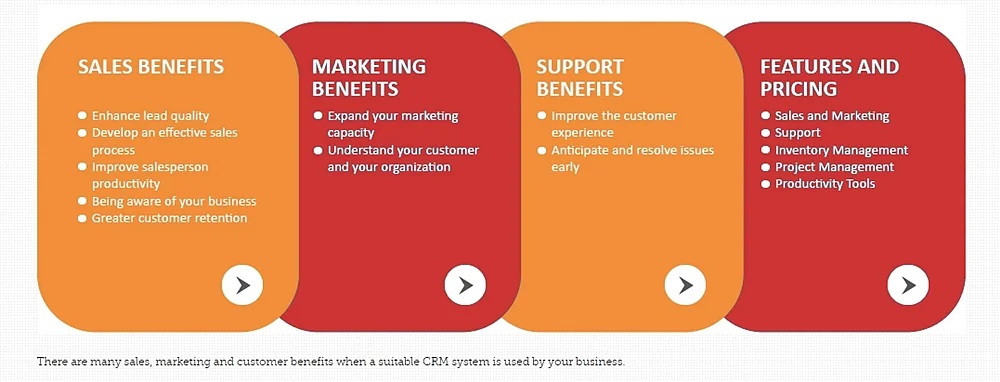
13 Game-Changing Benefits of CRM Software Every Tech Leader Needs to Know
-
Amplified marketing ROI
A trusted customer relationship consultancy can leverage CRM analytics to help companies enhance customer engagement and communication. Campaign tracking in CRM systems allows for the development of actionable insights about the most effective campaigns and marketing communications for specific customer segments, ultimately boosting marketing ROI.
-
Streamlined contact management
A well-implemented CRM system records every interaction, making it accessible company-wide through a centralised contact management system. This empowers sales, marketing, and customer support functions to efficiently track pipeline development and customer history.
-
Simplified and accurate forecasting
CRM software provides clear visibility on leads and opportunities, allowing teams to plan the entire customer journey from initial contact to sale. Sales teams gain a deeper understanding of their sales pipeline, while marketing teams benefit from enhanced forecasting capabilities. Integration with customers’ social media data further enriches the insights.
-
Increased productivity
CRM systems automate, track, and optimise follow-up emails and other administrative communications based on engagement rates. Sales or customer service agents can quickly access up-to-date information from customer meetings, while customer service agents can view the customer’s background during a call, enhancing productivity.
-
Refined products or services
A top-notch customer relationship consultancy can help launch a CRM programme that collects data from various touch points across the business, including in-store, social media, email, web, and phone calls. This comprehensive data enables organisations to improve communications and identify customer service issues earlier.
-
Effective sales management
CRM platforms empower sales managers to score leads, build customer relationships, track sales-related activities, and provide real-time updates for their teams. Teams can manage the sales pipeline and milestones throughout the sales journey, from lead generation to closing.
Source: Zoho
-
Successful multi-channel conversation tracking
CRM systems allow customer support teams to seamlessly track conversations across multiple channels, such as social media, email, phone, or live chat. This ensures that no previous interactions are missed, preventing customer frustration from having to re-explain their issue to multiple agents.
-
Accurate sales forecasting
A CRM system enables sales teams to learn from past experiences and predict future sales using historical data. Meanwhile, predictive analytics provide insights about customer engagement levels and potential future sales.
-
Enhanced relationship management
Robust CRM systems allow sales, marketing, and customer support teams to track meetings with customers and suppliers, record requests, add notes, plan follow-ups, and monitor next steps. CRM reporting enables companies to compare the efficiency of providers and manage their supply chain more effectively.
-
Refined sales metrics
CRM data and reporting provide insights into conversion rates at key stages in the sales funnel. By understanding their customers, businesses can unlock additional value from existing customers through upselling and cross-selling opportunities.
-
In-depth sales pipeline comprehension
Sales managers can access data on sales reps’ progress toward targets and evaluate the performance of individual sales teams, products, and projects using CRM systems.
-
Cross-team collaboration
CRM systems facilitate collaboration among different departments. For example, a sales team can work with the product team to create tailored quotes, while a marketing campaign that generates a lead can equip a sales rep with in-depth knowledge about the lead for a more personalised conversation.
-
Elevated customer satisfaction and retention
Best practice CRM programmes allow companies to have a comprehensive view of a customer’s interactions to date, making it easier to predict potential concerns and address complaints. This results in a more positive experience for customers, who won’t have to be referred to different departments.
10 Pivotal Steps to Set Up a CRM Like a Pro with Customer Relationship Consultancy
Step 1: Vet the suppliers and ask the hard questions
Before committing to your chosen customer relationship consultancy, thoroughly research their reviews, responsiveness, clients, familiarity with other tech suppliers, and service levels. Additionally, inquire about the support and training you will receive, as there will likely be numerous tech updates and requirements throughout your partnership.
Step 2: Establish milestones and objectives
A successful CRM setup project requires clear objectives and milestones. By establishing these, you can track progress, accomplish key milestones, and enhance customer relationships. According to Salesforce, 47% of CRM users claim it has a significant impact on customer retention and satisfaction.
Step 3: Provide comprehensive training and support
Training is crucial for CRM software and should be tailored to each business function and stakeholder. Continuous support and training ensure a significant ROI as a well-implemented CRM system can boost sales and marketing performance and pay for itself many times over.
Step 4: Be clear about your objectives
It’s essential to outline business objectives, targets, and strategies before investing in a CRM system. Setting goals in advance helps develop metrics for measuring progress and reduces time spent on unnecessary CRM functionalities.
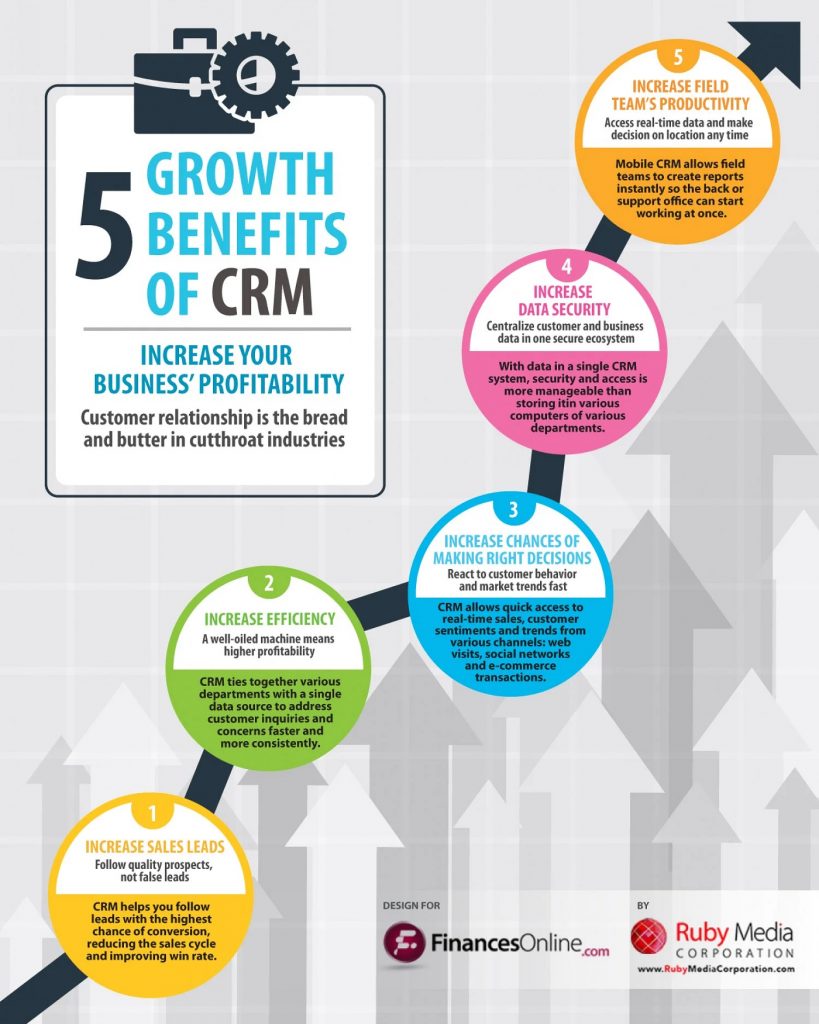
Source: FinancesOnline
Step 5: Automate processes
Automation frees employees from repetitive tasks, enabling them to focus on customer engagement. Effective workflow automation can increase sales productivity by 14.5%, as reported by Nucleus Research.
Step 6: Ensure personalization, scalability, and adaptability for the future
Choose a future-proof CRM system that can grow with your business to prevent costly digital transformation projects down the line. When selecting a customer relationship consultancy, consider not only your current needs but also potential future requirements.
Step 7: Cross-train employees
Cross-training staff in multiple areas of the business is essential, particularly in small teams. This ensures a positive customer experience regardless of who is handling the project and provides backup in case of employee departures or long-term absences.
Step 8: Secure executive buy-in
A successful CRM implementation requires the support of your executive team from the beginning, as they play a crucial role in fostering employee adoption of the new system. Communicate the importance of the CRM and how it contributes to company growth.
Step 9: Continuously create and update content
Regularly modify and add CRM content such as messages and email templates to test their effectiveness. Address recurring customer concerns by creating FAQs or blog posts, improving your site’s content while enhancing your search engine ranking.
Step 10: Understand user workflows and preferences
The best CRM systems cater to various users, not just top sales reps or tech-savvy employees. Study a cross-section of your CRM users to understand their work processes and preferences, increasing the likelihood of a smoother, quicker company-wide adoption.
Level Up Your B2B Marketing Strategy: CRM Tools for Stellar SaaS Success
Harnessing the power of CRM tools can propel your B2B marketing strategy to new heights. The right CRM software not only streamlines processes but also unlocks valuable customer insights that drive demand generation and improve sales performance.
To achieve stellar SaaS success, consider these five essential CRM tools:
- Marketing automation: A study by Nucleus Research reveals that marketing automation drives a 14.5% increase in sales productivity and a 12.2% reduction in marketing overhead. Integrating marketing automation with your CRM system ensures seamless lead nurturing, personalised content delivery, and efficient campaign management.
- Lead scoring: With 79% of marketing leads never converting to sales (MarketingSherpa), it’s crucial to prioritise high-quality leads. CRM tools with lead scoring capabilities help you identify high-value prospects, allowing your sales team to focus on closing deals.
- Analytics and reporting: A well-integrated CRM software delivers actionable insights, empowering data-driven decision-making. Forrester Research found that companies using data-driven marketing saw a 15-20% increase in ROI. Leverage CRM analytics to refine your B2B marketing strategy and drive results.
- Customer segmentation: Personalization is key in today’s competitive landscape. A study by McKinsey & Company revealed that personalised marketing can increase revenue by 5-15%. Utilise your CRM system’s segmentation features to create targeted campaigns that resonate with specific audience segments, leading to increased engagement and conversions.
- Social media integration: According to a report by Aberdeen Group, businesses using social CRM tools see a 26% increase in annual revenue growth. Integrating social media platforms with your CRM system allows you to monitor brand sentiment, engage with prospects, and track leads generated from social campaigns.
Maximising CRM Software ROI: Metrics, KPIs and Performance Tracking
To ensure your CRM software investment pays off, it’s vital to establish a robust performance tracking system with well-defined metrics and KPIs. Here are five key areas to focus on when maximising CRM software ROI:
- Lead conversion rate: According to a report by CSO Insights, organisations with CRM systems see a 47% increase in their lead conversion rates. Regularly monitor this KPI to identify bottlenecks and optimise your sales funnel for higher conversions.
- Customer retention: The probability of selling to an existing customer is 60-70% (Marketing Metrics). Leverage your CRM software to identify patterns in customer behaviour, proactively address issues, and improve customer satisfaction, resulting in increased loyalty and revenue.
- Customer lifetime value (CLV): A study by Harvard Business Review found that a 5% increase in customer retention can lead to a 25-95% increase in profits. Use CRM tools to calculate and optimise CLV by nurturing long-term relationships and upselling opportunities.
- Revenue attribution: Allocating marketing budgets effectively is crucial for B2B marketing success. By integrating CRM data with marketing analytics, you can track which channels and campaigns generate the most revenue and adjust your strategy accordingly.
- Team productivity: A CRM system can boost sales productivity by up to 34% (Salesforce). Monitor metrics such as the number of tasks completed, the time spent on customer interactions, and deal closure rates to identify areas for improvement and streamline workflows.
Supercharge Your Demand Generation: CRM System Integrations for the Ultimate Tech Stack
Integrating your CRM system with complementary tools creates a powerful tech stack that drives demand generation and accelerates B2B marketing success. Here are four key integrations to supercharge your CRM software:
- Email marketing: Email remains a top-performing channel for B2B marketers, generating a 4,400% ROI (Campaign Monitor). Syncing your CRM system with email marketing platforms enables personalised campaigns, effective lead nurturing, and accurate tracking of engagement metrics.
- Marketing automation: A report by Salesforce reveals that marketing automation can increase sales productivity by 14.5%. Integrating marketing automation tools with your CRM software streamlines workflows, improves lead scoring, and accelerates the sales cycle.
- Analytics and reporting: Integrating CRM tools with analytics platforms like Google Analytics provides a comprehensive view of your marketing performance. A study by MIT Sloan Management Review found that data-driven organisations are 5% more productive and 6% more profitable than competitors. Leverage integrated analytics to make informed decisions and optimise your B2B marketing strategy.
- Customer support: A seamless customer support experience is crucial for building long-term relationships. According to Zendesk, 52% of customers are more likely to make repeat purchases if they receive excellent customer service. By connecting your CRM system with helpdesk software, you can track customer interactions, resolve issues faster, and maintain high satisfaction levels.
B2B SAAS Winning Examples of CRM System Strategies
Case Study 1: Zoho CRM’s Impact on LendingFront
LendingFront, a fintech startup, faced challenges in managing leads and customer interactions, affecting their growth potential. Ineffective communication and disorganized data led to missed opportunities and customer dissatisfaction. Implementing Zoho CRM software helped LendingFront streamline customer data, improve communication, and enhance their B2B marketing strategies, driving revenue growth.
Case Study 2: Pipedrive CRM Boosts Efficiency for SocialBee
SocialBee, a digital marketing agency, struggled to track and manage client projects, resulting in inefficiencies and lost revenue. The lack of a unified system caused confusion and increased workloads for the team. Pipedrive CRM tools empowered SocialBee to centralize project management and optimize their sales funnel, leading to a 30% increase in demand generation.
Case Study 3: Freshworks CRM Transforms Lead Generation for ClearSlide
ClearSlide, a SaaS company specializing in sales engagement, grappled with a fragmented lead management process, hampering their B2B marketing efforts. By adopting Freshworks CRM, ClearSlide gained valuable insights into customer behavior, enabling them to create targeted campaigns and improve their sales pipeline. Consequently, the company experienced a 25% increase in lead conversion rates.